How GLS transport management software works
GLS converts everyday freight emails into structured transport jobs and automates the operational workflow for UK haulage operators.
GLS is part of a complete transport management workflow for UK haulage companies. You can also review pricing for UK operators or return to the homepage overview.
From the moment a customer sends a freight instruction, GLS can create a transport job, notify the driver and record the delivery automatically.
1. Forward the freight email
When a customer sends a freight request by email, simply forward that email into your GLS account. No manual data entry is required.
The best way to do this is to create a document inbox such as:
[email protected]
Ask your customers to send their transport instructions to this inbox (for example a commercial invoice or collection note).
You then create a rule in your email system to automatically forward these emails to your GLS automation inbox.
Your GLS automation inbox will look something like:
[email protected]
When you sign up GLS will provide your unique secure email address.
Using this method your customer sends their instruction only once. After that the process can be automated by GLS.
2. GLS reads the document and prepares the job
GLS reads the email and extracts operational information such as collection address, delivery address and shipment details.
A structured transport job is automatically prepared in the system.
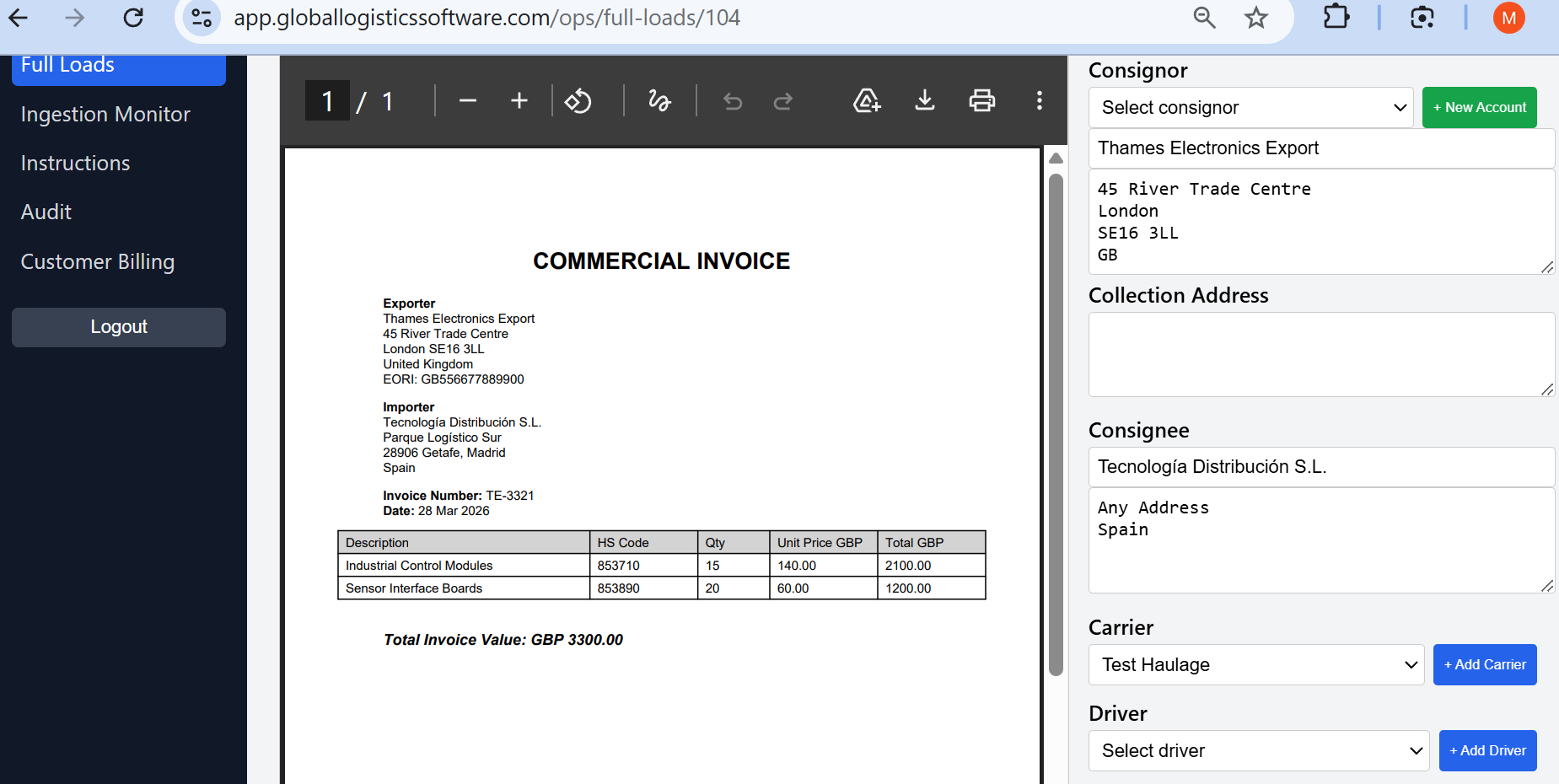
The original commercial invoice or email appears on the left and the transport job fields appear on the right.
GLS attempts to populate all fields automatically. If something cannot be read from the document you can simply copy and paste the information from the original email.
3. Operations confirms the job
Before the movement begins, operations confirms the transport job. This ensures the information extracted from the document is correct.
To confirm the job you typically only need to:
- allocate a driver
- enter a trailer number
- enter the billing price
Once confirmed GLS automatically issues the collection note to the driver by email and WhatsApp.
4. Driver instructions are sent
The driver receives the documents and delivery instructions directly via email and WhatsApp.
The driver email contains three actions:
COLLECTED
DELIVERED
TAKE POD
When the driver clicks COLLECTED or DELIVERED the job status is automatically updated. TAKE POD opens the driver workflow to photograph and attach the proof-of-delivery document to the job.
5. Delivery is recorded
When DELIVERED is clicked the system records the delivery in the operational record. The driver can then use TAKE POD to photograph and attach the proof-of-delivery document.
This creates a clear shipment record including collection and delivery confirmation plus the photographed POD.
See the driver-link and POD-photo workflow on the Proof of Delivery module page.
6. Customer invoice is issued
Once delivery is confirmed GLS automatically prepares and issues the customer invoice based on the price recorded in the transport job.
This removes the need for manual invoice preparation and ensures the transport movement is fully recorded from instruction to billing.
Operational record and audit trail
Every stage of the movement becomes part of the operational record.
Events recorded include:
- document received
- job confirmed
- driver collection
- delivery confirmation
- invoice issued
These events create a clear shipment history and operational audit trail.
Learn more about system controls on the Security and Compliance page or return to the GLS overview.